Placeholder Images
NRO Admin Panel: System / Configuration / Catalog section / Catalog tab / Product Image Placeholders panel
You can optionally upload your own image to use as the default placeholder image for any products that do not yet have images: 1. In the NRO Admin Panel, select System / Configuration / Catalog section / Catalog tab and expand the Product Image Placeholders panel . 2. For each image type (Base Image, Small Image, and Thumbnail), click the Browse button to upload a new placeholder image. You can use the same image or different images for each type:  TIP:
Image zooms work for placeholder images the same way they do for regular item images. To use zooms on your placeholder image, simply upload a Base Image placeholder that's larger than the recommended size (360w x 434h). As long as the uploaded image is larger than the recommendations, the image zoom will display automatically.
TIP:
Image zooms work for placeholder images the same way they do for regular item images. To use zooms on your placeholder image, simply upload a Base Image placeholder that's larger than the recommended size (360w x 434h). As long as the uploaded image is larger than the recommendations, the image zoom will display automatically.
Recommended image sizes for the placeholder images are the same as for item images (detailed in the previous section). CacheNRO Admin Panel: System / Cache Management If you make changes in the NRO Admin Panel but the changes are not reflected in your storefront, try clearing your cache! What is Cache?The cache is a temporary storage area where frequently accessed data can be stored for rapid access. Many websites utilize caching to speed up the processing and loading of the content. When data is stored in the cache, it can be used in the future by accessing the cached copy rather than re-downloading or reprocessing the original data. Clearing the cache refreshes the out-of-date information that's stored in the cache and replaces it with the new content. Clearing Cache
Front-End Cache
Front-end changes typically include updates to images, CSS files, or other front-end content. To clear the front-end cache:
Back-End Cache
Back-end changes typically include changes to settings in the NRO Admin Panel, PHTML files, XML files, installing an extension, or other back-end content. To clear the back-end cache:
ErrorsAdmin Panel Error: "An error occurred while saving this configuration”NRO Admin Panel: System / Configuration Problem:When saving your configuration settings in the NRO Admin Panel, you receive an error message "An error occurred while saving this configuration…” You will receive a similar error message if you enter invalid theme information – for example, if you enter the name of a package or theme that doesn't exist. Solutions:
|
|
Attachments

There are no attachments for this article.
|
Comments

There are no comments for this article. Be the first to post a comment.
 Add Comment
|
Related Articles

How to Authorize Hourly Personalized Training Time
Added on Fri, Jul 18, 2014
Change The New and On Sale Banners For Your Item Images
Added on Fri, Feb 5, 2016
Using Special Characters in NRO
Added on Fri, May 10, 2013
Menu Link Dropdown Is Transparent
Added on Fri, Feb 19, 2016
New and Specials Pages
Added on Fri, Mar 29, 2013
Adding More Social Media Icons to the Footer
Added on Tue, May 31, 2016
Changing the Number of Items Per Catalog Page (Show X Products Per Page)
Added on Thu, Jun 21, 2012
How do I hide the "Availability In Stock" message
Added on Wed, Nov 7, 2012
CMS Block not displaying
Added on Thu, Sep 1, 2016
Replace the Arrow Graphics on my Page
Added on Thu, Jun 21, 2012
|




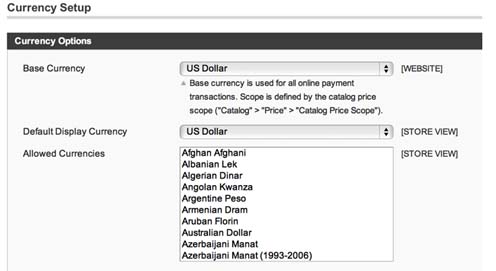 US Dollars



 To remove
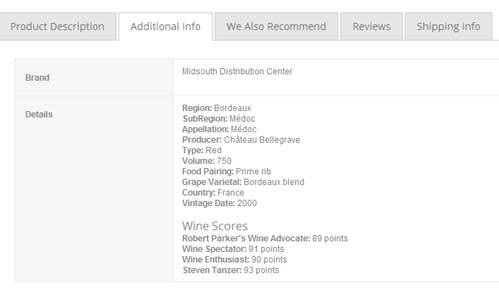
 To add an attribute to the Additional Info tab, select Catalog / Attributes / Manage Attributes and select the attribute you wish to display on the tab. On the Properties tab in the Frontend Properties panel, change the Visible on Product View Page on Front-end field to Yes.
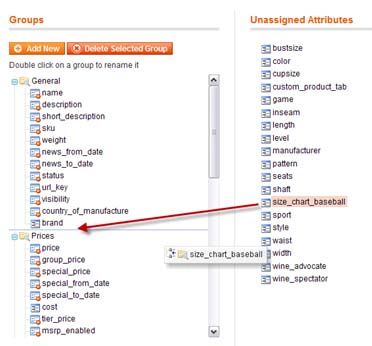 Each product is assigned to a single attribute set. An attribute set is a collection of attributes that are common to a group of similar products. Attributes can be grouped into sets so similar products can be created with the same attributes.










 Subscribe to Article
 Print Article
 Email Article to Friend
 Export to MS Word