Article Number: 519 | Rating: Unrated | Last Updated: Mon, Jul 13, 2015 at 4:52 PM
Who is Thawte?
Thawte is the name of the company that provides us with our SSL certificates. Your store's SSL certificate helps establish a layer of comfort and trust between your storefront and your customer. To learn more about SSL certificates, please refer to this article.
The static Thawte seal is a gif image that can be prominently displayed on your storefront. You have three approved Thawte seals, from which you can choose:
The dynamic Thawte seal is an image generated by a line of javascript that can be clicked upon to show information about your business. The dynamic seal also displays the current date. There is one version of the dynamic seal available, using the script that we've provided within this article. Below is an example of how the dynamic seal will display in your storefront:
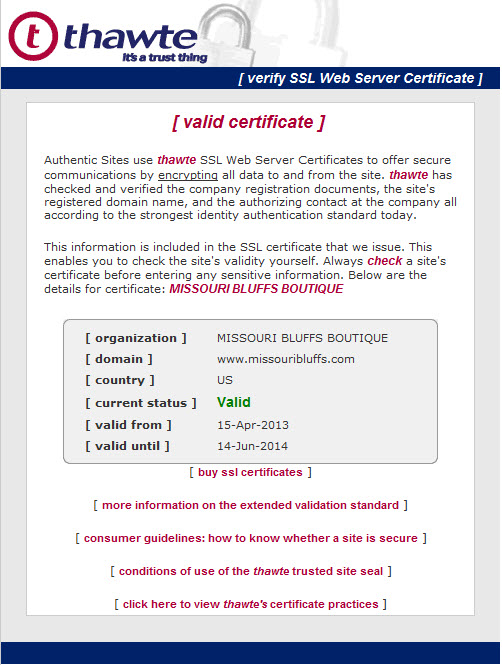
Below is an example of the details a customer will see, when they click into the details of your SSL certificate:
Implementing the Static Seal in Your Store's Footer
You can choose to display your static and dynamic Thawte seals anywhere content can be edited. These instructions will explain how to display a static Thawte seal in your footer, and then link that static Thawte seal to your store's privacy page. If you'd like for us to implement your seals for you, we can do so under hourly design services.
We recommend placing a static seal in your store's footer, as opposed to dynamically displaying the seal in your store's footer. The reason is, Thawte's servers that generate the seal can occasionally become unresponsive or slow to respond. If you place the dynamic seal in the footer, the seal must generate every time someone clicks a link in your store. Therefore, to ensure your storefront remains as responsive as possible, we recommend that you load a static seal in your footer and then link to a CMS page that displays your store's dynamic Thawte security seal. If the dynamic seal is on a content page, the seal only must dynamically be generated at the moment the customer chooses to look at the dynamic seal.
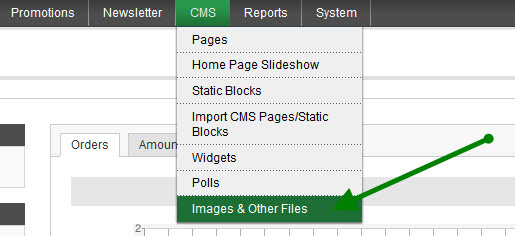
The first piece of the installation of the Thawte seal is to choose a static seal that you wish to display in your footer. The Thawte approved seals are attached to this KB article. After choosing your seal, you'll upload the seal to your store's media directory. This is most easily accomplished by means of AjaXplorer. This utility is located under CMS > Images & Other Files.
After the seal is uploaded, it needs to be linked into your store's footer. To edit your store's footer, navigate to System / Configuration / General Section / Design tab / Footer panel. Expand the footer panel to display the editable Copyright section. Under the existing content, enter this text. Where you see bold red text below, you'll need to substitute the name of the seal that you chose:
Displaying the Dynamic Seal on Your Store's Privacy Page
The last piece of the implementation will center the dynamic seal display on your store's Privacy page, wherever you place the HTML. If you wish to create a custom CMS page to display your static seal on a page other than your Privacy Policy page, you may do so. Simply follow the instructions in this KB article that explain how to create custom CMS pages. Or, if you'd like for us to implement this page for you, we can do so under hourly professional services.
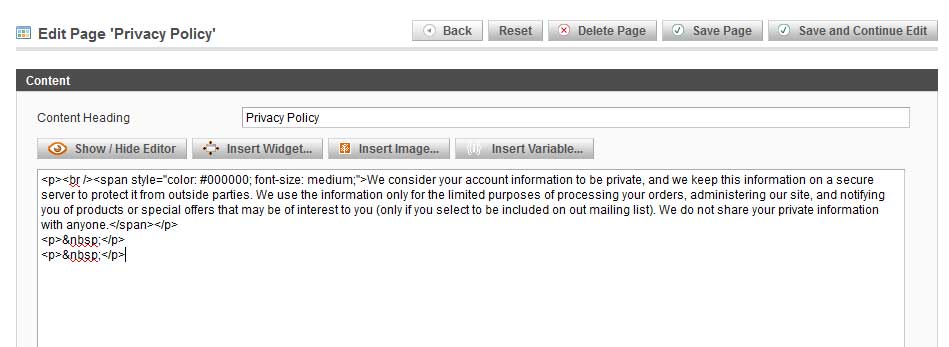
The Privacy page content can be edited by navigating to CMS / Pages / (click on the Privacy Policy page to display its properties) / Content tab. You will need to add the HTML through the HTML editor. To display the HTML editor, click the Show/Hide Editor button. When you do, your content tab will look similar to the image displayed below:
At the front of the content, place your cursor. Now, paste the following script directly into the editor. The shortcut keys on your keyboard for pasting are Ctrl + v.
Whenever you perform design related tasks, it's a good idea to cycle your storefront cache, even if you don't get a warning to cycle the cache. To cycle the cache, navigate to System / Cache Management. Click the 'Select All' link in the upper left corner of the menu and then click the 'Flush Magento Cache' button.
Now, navigate to your storefront and check your work. If you already have your home page open, you will need to refresh your browser session, to see your changes. To do this, hold the control key on your keyboard, while pressing the F5 button on your keyboard.






 17.16 KB )

 Add Comment

 Subscribe to Article
 Print Article
 Email Article to Friend
 Export to MS Word